
How to Set Up Your Own AI Agent on OpenClaw (Step-by-Step)
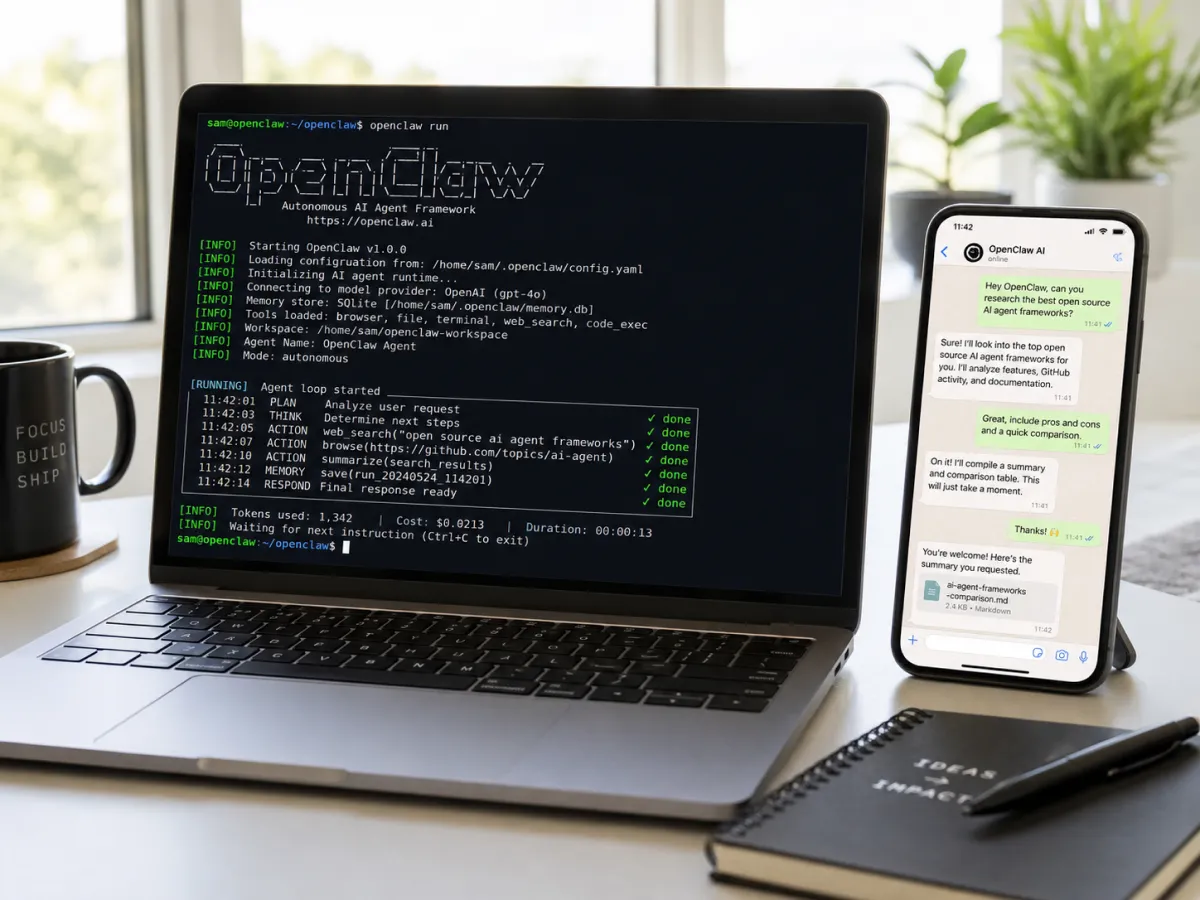
OpenClaw went from zero to over 150,000 GitHub stars in a matter of weeks. It’s the fastest-growing open-source AI project in history, and for good reason. This isn’t another chatbot you visit in a browser. OpenClaw is a personal AI agent that runs on your own computer and connects to the apps you already use: WhatsApp, Telegram, Slack, Discord, even iMessage.
The pitch is simple: an AI assistant that actually does things. It reads your emails, manages your calendar, runs shell commands, browses the web, and automates workflows. All from a chat message. Our team at Building Brands Marketing tested it, and yeah, it’s as useful as the hype suggests. Here’s how to set up your own AI agent on OpenClaw, even if you’re not a developer.
What You’ll Need Before You Start
Before diving into the OpenClaw setup, gather these basics:
A computer running macOS, Windows (with WSL2), or Linux. OpenClaw runs locally on your machine. A modern laptop with at least 8GB of RAM works fine.
Node.js installed. OpenClaw runs on Node.js. If you don’t have it, download it from nodejs.org. Takes about two minutes.
An API key from an AI provider. OpenClaw is model-agnostic, meaning it works with Claude (Anthropic), ChatGPT (OpenAI), Gemini (Google), or even local models through Ollama. You’ll need an API key from whichever provider you choose. Claude and OpenAI both offer pay-as-you-go pricing, so you only pay for what you use.
A messaging app account. You’ll connect OpenClaw to a platform like WhatsApp, Telegram, Discord, or Slack. Pick the one you already use the most.
Step 1: Install OpenClaw
Open your terminal (or command prompt on Windows with WSL2). The fastest way to install OpenClaw is through the command line:
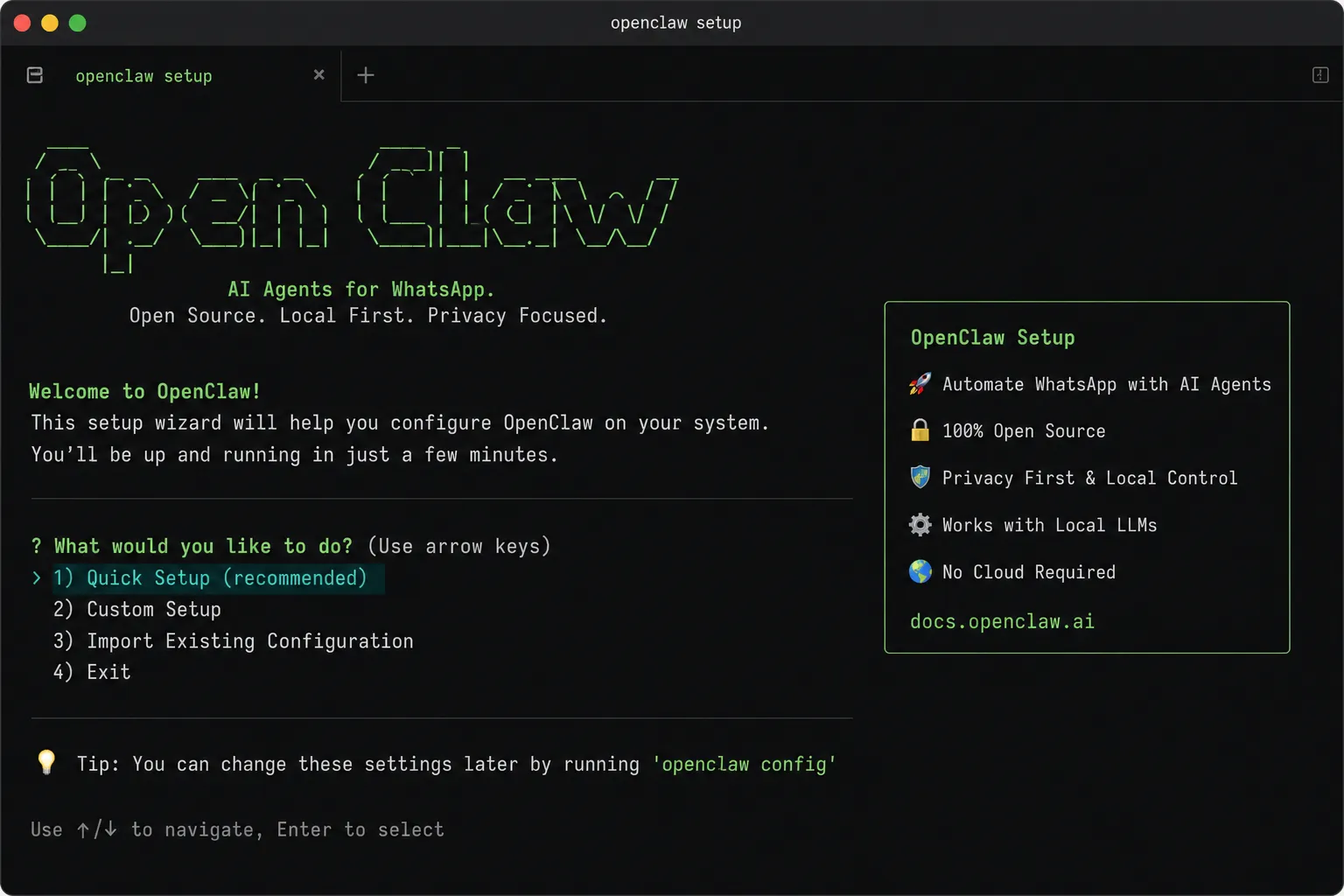
Run npx openclaw or clone the repository from GitHub. The onboarding wizard walks you through the rest. OpenClaw’s own documentation recommends using the wizard path because it catches configuration issues early.
Step 2: Run the Onboarding Wizard
Type openclaw onboard in your terminal. The wizard asks you step-by-step questions:
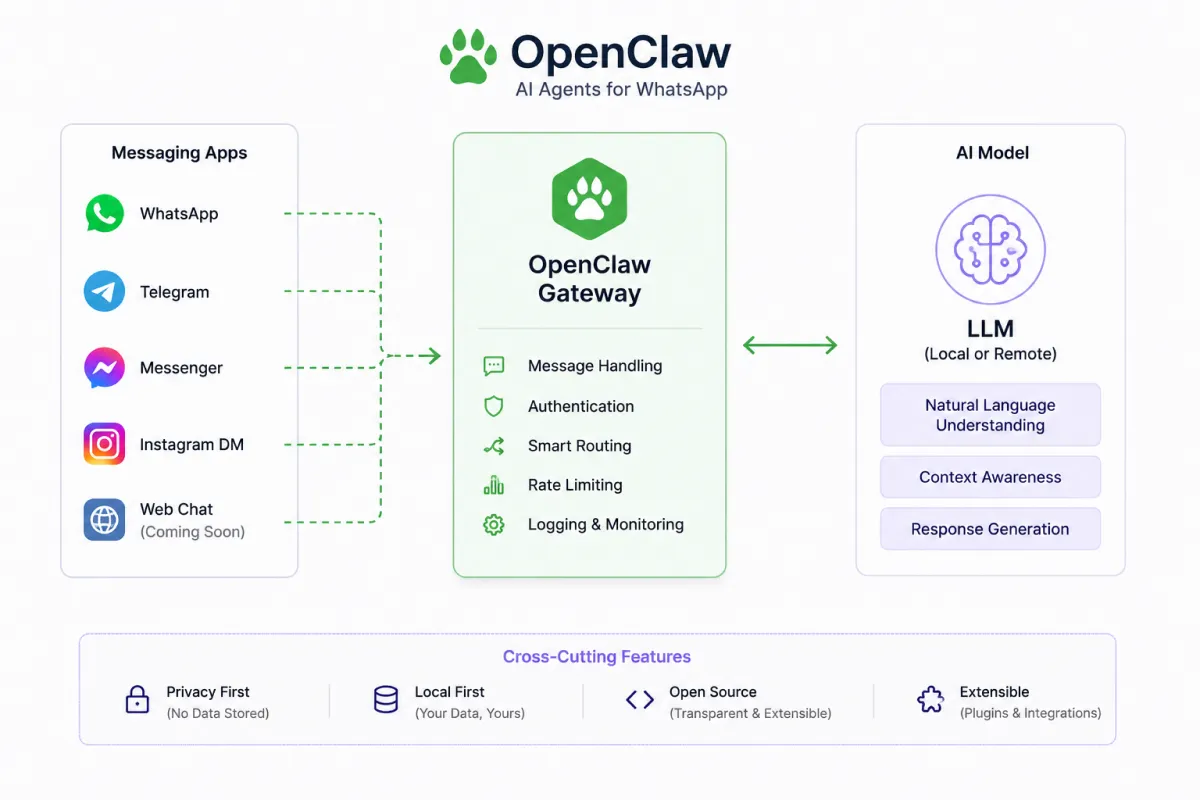
It sets up the Gateway, which is OpenClaw’s control plane for managing sessions, channels, and tools. Then it asks which messaging channels you want to connect. Pick your preferred platform and follow the authentication prompts. For Telegram, you’ll create a bot through BotFather. For WhatsApp, you’ll scan a QR code. Each platform has its own flow, but the wizard handles the heavy lifting.
Step 3: Connect Your AI Model
The wizard prompts you for your AI provider’s API key. Paste it in, and OpenClaw connects to your chosen model. If you’re using Claude (which we recommend for conversational quality), grab your API key from console.anthropic.com. For OpenAI, it’s platform.openai.com.
If you want to keep everything local and private, you can use Ollama to run open-source models directly on your machine. No API key needed, no data leaving your computer.
Step 4: Set Up Skills
OpenClaw skills are pre-built capabilities your AI agent can use. The wizard asks if you want to configure skills during setup. Say yes. You’ll see options like browser control, file management, shell command execution, and integrations with tools like Google Calendar and Obsidian.
Start with the basics: web browsing and file management. You can always add more later. OpenClaw’s community has built over 100 skills, and adding new ones is as simple as dropping them into your workspace folder.
Step 5: Send Your First Message
Once setup is complete, open your connected messaging app and send your AI agent a message. Start simple: “What can you do?” or “Summarize my latest 5 emails.” Your agent responds in the same chat thread, just like texting a coworker.
From here, the possibilities open up. Schedule calendar events by telling your agent to do it. Ask it to draft an email and send it. Have it research competitors and drop a summary in your Slack channel. The more you use it, the more it learns your preferences.
A Quick Note on Security
OpenClaw is powerful, which means you need to treat it with respect. It has access to whatever you connect it to. Don’t give it permissions you wouldn’t give an intern on their first day. Start narrow, expand gradually, and run openclaw doctor periodically to check for misconfigured settings.
CrowdStrike and other security firms have flagged that exposed OpenClaw instances can be vulnerable to prompt injection attacks. Keep your instance local, don’t expose your Gateway to the public internet without Tailscale or a VPN, and review the security guidance on OpenClaw’s GitHub page.
Is OpenClaw Worth the Setup?
For technically adventurous business owners? Absolutely. For someone who’s never opened a terminal? It might be a stretch right now. But the project is evolving fast, and the community support is massive. If you can follow instructions and aren’t afraid to Google an error message, you can get OpenClaw running in under an hour.
Want help integrating AI agents into your business workflow? Building Brands Marketing stays on top of the latest AI tools so you don’t have to. We’ll help you figure out what works, what’s worth the time, and what’s just hype. Reach out for a free consultation.